Hi!
Since I needed something to procrastinate about, I thought of finally getting rid of using the Google Tasks app! The problem is, that most task apps are loaded with WAY too many features. So I thought of developing / vibecoding my own workflow!
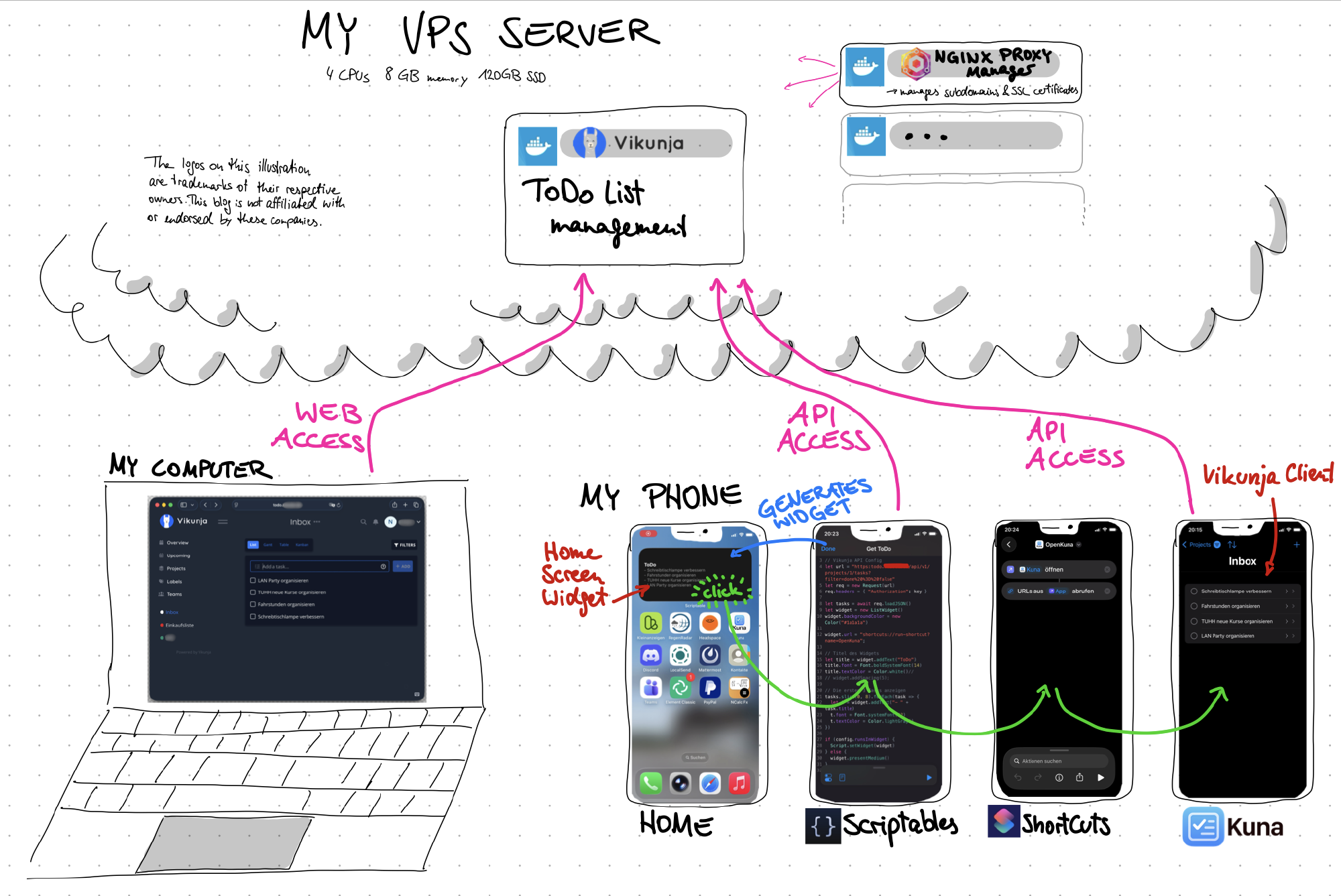
This is what I set up! (Click to zoom)
My requirements #
- To-Do list easily accessible on all my devices (Linux Mint, macOS, iOS)
- To-Do list self-hosted, light-weight → No additional cost, privacy
- Good iOS app with widget showing the tasks
Vikunja as the core system #
Vikunja is a self-hostable to-do list management app that can be set up easily with docker. It has a nice, simple web-interface and the option of providing APIs. There exist two non-affiliated iOS apps that provide a native UI for the Vikunja To-Do list. I chose “Kuna” for its simplicity.
The challenge: Both Vikunja iOS apps don’t have a widget that displays the To-Do list on the home screen!
Bonus: The attachment contains the docker-compose.yml for setting up Vikunja yourself
Throw together a custom iOS widget #
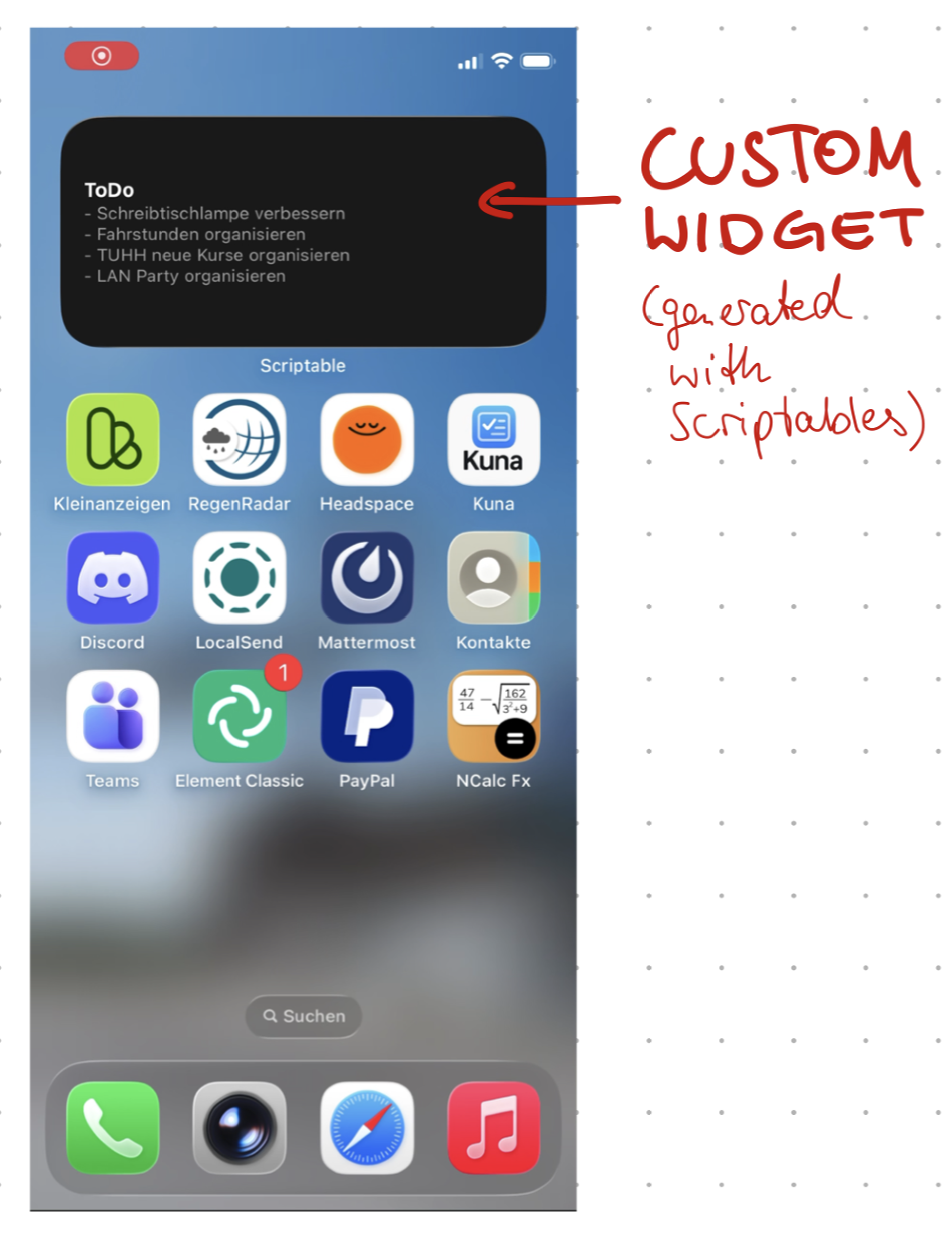
The iOS app Scriptables provides automation to iOS and the option of custom widgets, other than the native ShortCuts app from Apple. It asks the Vikunja To-Do Server, parses the answer and displays the first five tasks nicely. You find the corresponding code in Attachment 2.
Open Kuna app on widget click #
I wanted to be able to touch the widget and then directly edit the To-Do list. This was a little tricky:
1. Touching a widget opens URL
With the widget generated by Scriptables, a URL can be opened on click. However, how to open an app with a URL??
2. URL opens app
In fact, some iOS apps can be opened with a so-called “Custom URL Schemes”! The difference is in the beginning: Instead of having https://<domain>/loaction, one has: <appname>://<in-app-location>. If you are on an iPhone, you can easily try it out yourself - just open whatsapp:// in safari which correspondingly opens Whatsapp. Unfortunately, the “Kuna” To-Do app cannot be opened like this, but for the ShortCut app, its possible using shortcuts://.
3. Execute shortcut directly from URL
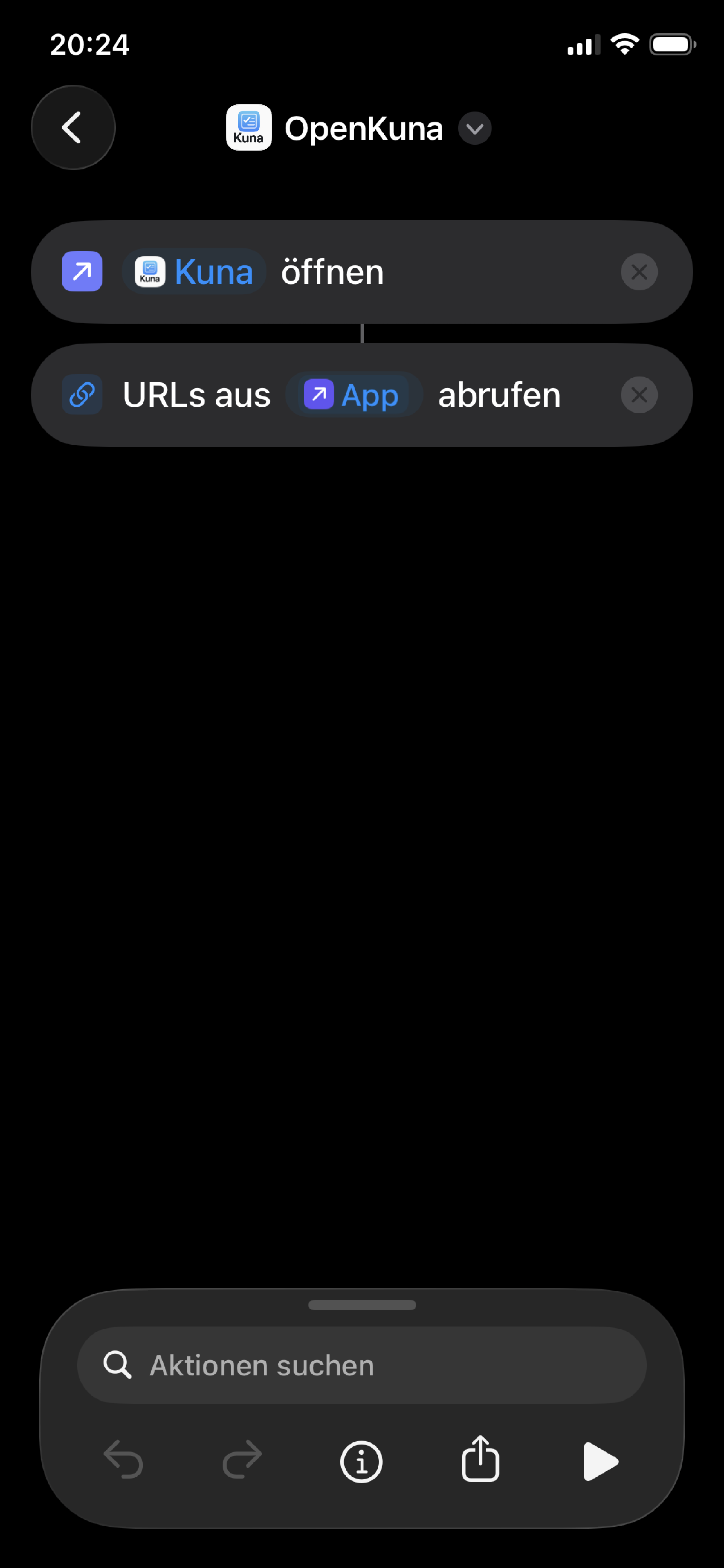
When customizing the URL even more, one can execute shortcut workflows: shortcuts://run-shortcut?name=OpenKuna. The shortcut itself is simple:
Why not directly use the iOS shortcuts app? #
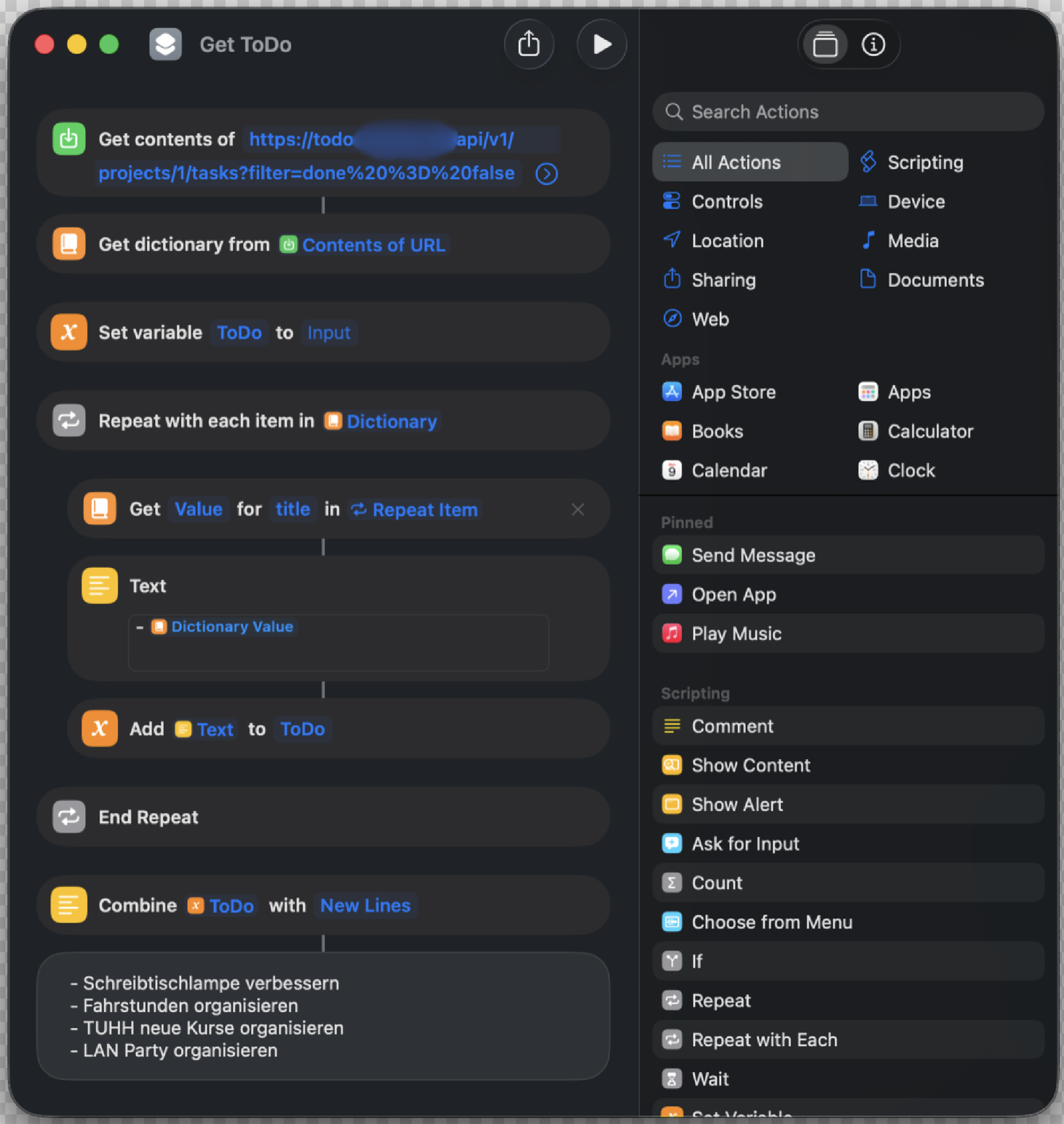
This is the workflow I initially created on the iPhone. It accesses the API similarly like Scriptables – the shortcut can even be added to the home screen! However, the widget cannot show the To-Do list as it’s just a button - not good!
Result #
I now have a proper, self-hosted To-Do management system. It’s cool to play around with the APIs, you get to know soo main possibilities! However, it bugs me that the animations in iOS are so slow and Apple really shows every step in between the automation.
Should you set this up too?
I guess it doesn’t make sense to go through the struggle for only getting a To-Do list on your home screen xD. Also, you don’t need to host your own Vikunja To-Do server, they also host it for you.
That’s it! Thanks for reading.
I am interested in your thoughts! - Reply with a simple Email
Have a nice day,
Carl
Attachments #
Attachment 1: Vikunja to-do server docker-compose.yml #
version: '3.8'

services:
  vikunja-db:
    image: mariadb:10
    container_name: vikunja-db
    command: --character-set-server=utf8mb4 --collation-server=utf8mb4_unicode_ci
    environment:
      - MYSQL_ROOT_PASSWORD=choose_password_root # adjust password
      - MYSQL_USER=vikunja
      - MYSQL_PASSWORD=choose_password_for_mysql # adjust password
      - MYSQL_DATABASE=vikunja
    volumes:
      - /path/on/host/vikunja/db:/var/lib/mysql # adjust host path
    restart: unless-stopped
    networks:
      - docker_website_network

  vikunja:
    image: vikunja/vikunja
    container_name: vikunja-app
    ports:
      - 8080:3456 # Maps the internal port 3456 to your host's 8080
    environment:
      - VIKUNJA_DATABASE_HOST=vikunja-db
      - VIKUNJA_DATABASE_TYPE=mysql
      - VIKUNJA_DATABASE_USER=vikunja
      - VIKUNJA_DATABASE_PASSWORD=choose_password_for_mysql # adjust password
      - VIKUNJA_DATABASE_DATABASE=vikunja
      - VIKUNJA_SERVICE_JWTSECRET=choose_password_
      - VIKUNJA_SERVICE_PUBLICURL=https://your_domain.de # adjust to your domain
      - VIKUNJA_CACHE_ENABLED=true
      - VIKUNJA_CACHE_TYPE=memory
      - VIKUNJA_SERVICE_ENABLEREGISTRATION=false
    volumes:
      - /path/on/host/vikunja/files:/app/vikunja/files # adjust path
      - /path/on/host/vikunja/config.yml:/etc/vikunja/config.yml # adjust path
    depends_on:
      - vikunja-db
    restart: unless-stopped
    networks:
      - docker_website_network

networks:
  # make sure the network can be accessed from the internet
  docker_website_network:
    external: true
Attachment 2: Scriptables app on iPhone: Javascript code #
// Vikunja API config - adjust!
let url = "https:your-domain.de/api/v1/projects/1/tasks?filter=done%20%3D%20false"
// "filter=done%20%3D%20false": directly filters out finished tasks!

// Get token from vikunja web UI
let key="your_vikunja_api_token"

let req = new Request(url)
req.headers = { "Authorization": key }


let tasks = await req.loadJSON()
let widget = new ListWidget()
widget.backgroundColor = new Color("#1a1a1a")

// Execute the OpenKuna shortcut to open the Kuna app
// This needs to be setup by yourself in the Shortcuts app
widget.url = "shortcuts://run-shortcut?name=OpenKuna";

// Build widget
let title = widget.addText("To-Do")
title.font = Font.boldSystemFont(14)
title.textColor = Color.white()

// Show first 5 tasks
tasks.slice(0, 5).forEach(task => {
  let t = widget.addText("- " + task.title)
  t.font = Font.systemFont(12)
  t.textColor = Color.lightGray()
})

if (config.runsInWidget) {
  Script.setWidget(widget)
} else {
  widget.presentMedium()
}
Script.complete()